Reports
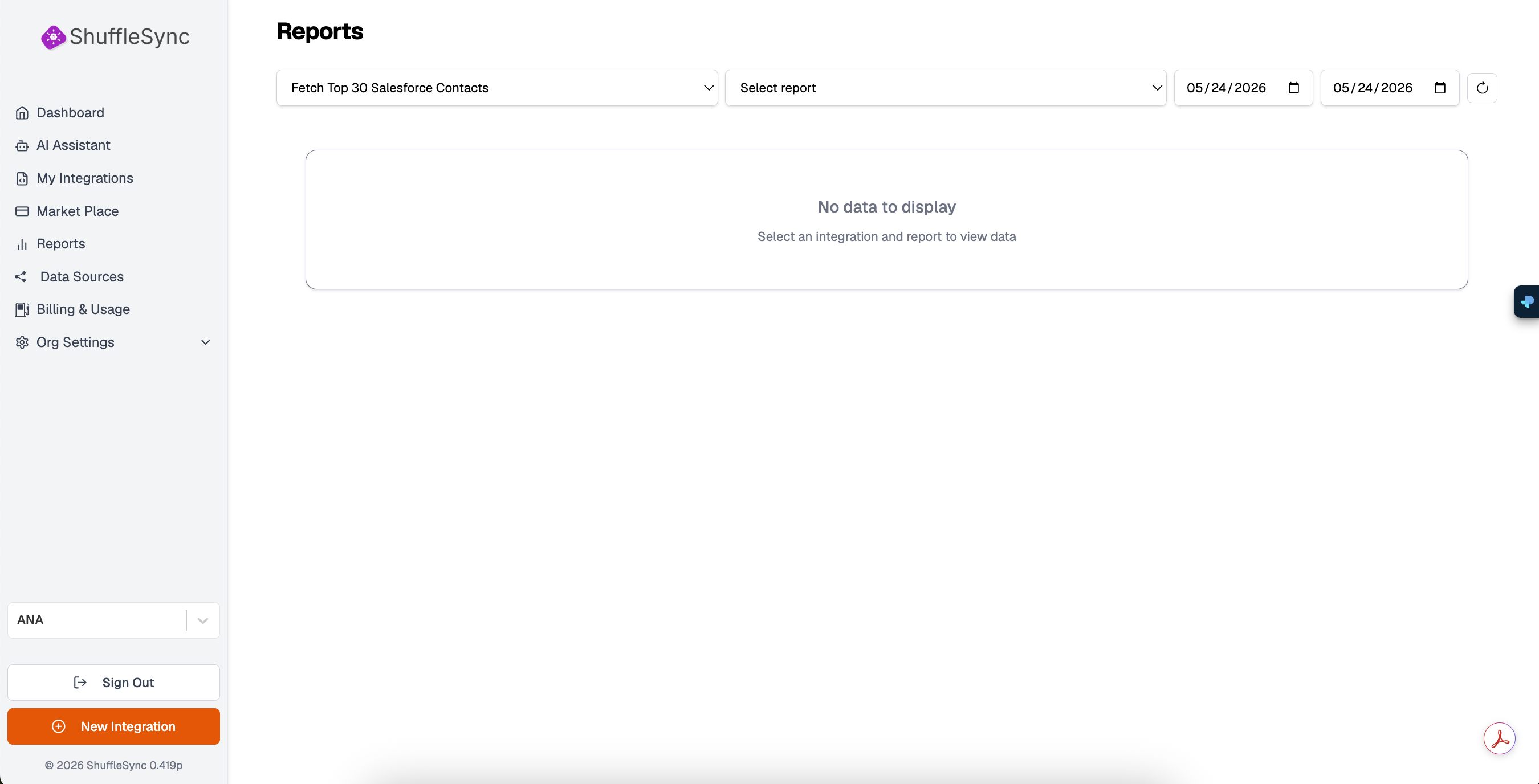
The Reports feature allows you to generate detailed data reports from your integrations. Filter by date range, integration, and report type to get the insights you need.
Generating Reports
To generate a report, configure the following options:
Select Integration
Use the first dropdown to choose which integration to report on. The dropdown shows all your configured integrations, including their data sources. For example:
- Fetch Top 30 Salesforce Contacts
- Sync Shopify Orders to Mailchimp
- Daily HubSpot to Jira Sync
Select Report Type
Choose the type of report you want to generate:
- Execution Summary: Overview of workflow runs, successes, and failures
- Data Transfer: Records processed, created, updated, and deleted
- Performance Metrics: Response times, throughput, and bottlenecks
- Error Analysis: Breakdown of errors by type and frequency
Date Range
Use the date pickers to select your reporting period. You can choose:
- A single day
- A custom date range
- Pre-defined periods (last 7 days, 30 days, etc.)
Quick Date Selection
Viewing Report Data
After selecting your filters, the report data displays in the main content area. Reports can include:
- Summary Statistics: Total executions, success rate, average duration
- Trend Charts: Visual representation of activity over time
- Detailed Tables: Record-level information with sortable columns
- Error Logs: Specific error messages and affected records
No Data State
If no data is available for the selected filters, you will see the message:
No data to display. Select an integration and report to view data.
This typically means:
- The integration has not run during the selected time period
- No matching records were found for the report criteria
- The integration is new and has not yet been executed
Refreshing Data
Click the refresh icon next to the date pickers to reload the report with the latest data. This is useful if your integration has run since you initially loaded the page.
Exporting Reports
Reports can be exported for sharing or further analysis:
- CSV: Download as a comma-separated file for spreadsheet applications
- JSON: Export raw data for programmatic processing
- PDF: Generate a formatted report document
Export Availability
Scheduled Reports
For recurring reporting needs, you can schedule reports to be generated and emailed automatically. Available on Professional and Enterprise plans.
Best Practices
- Regular Monitoring: Review reports weekly to catch issues early
- Compare Periods: Look at month-over-month trends to spot patterns
- Error Tracking: Use error reports to identify and fix recurring issues
- Capacity Planning: Monitor performance metrics to plan for scaling