AI Assistant
The AI Assistant helps you build integration workflows using natural language. Simply describe what you want to accomplish, and the AI will generate the code and workflow configuration for you.
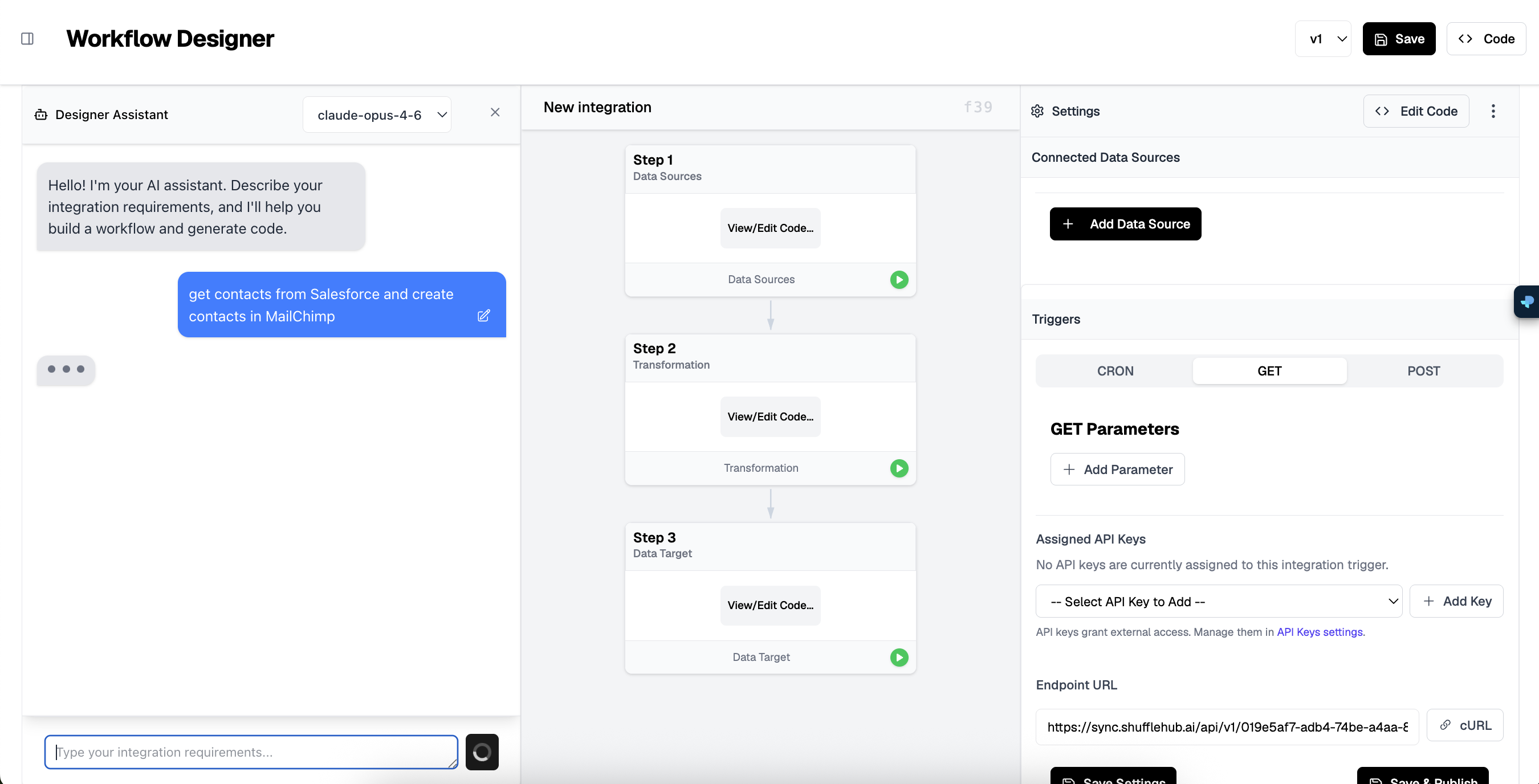
How It Works
The AI Assistant is powered by Claude, a state-of-the-art language model that understands your integration requirements and generates production-ready code. Here is how to use it:
Describe Your Integration
Type your integration requirements in plain English. For example:"get contacts from Salesforce and create contacts in MailChimp"
Review the Generated Workflow
The AI will create a multi-step workflow with data source connections, transformations, and target destinations. Review the generated steps in the visual workflow editor.
Customize and Refine
Click on any step to view or edit the generated code. You can ask the AI for modifications or manually adjust the code as needed.
Save and Deploy
Once satisfied, save your integration and configure the trigger settings. Your workflow is now ready to run.
Example Prompts
Here are some example prompts you can use with the AI Assistant:
- "Sync new Shopify orders to a Google Sheet"
- "Get recent Salesforce contacts and add them to a MailChimp audience"
- "When a HubSpot deal is won, create a Jira ticket for onboarding"
- "Fetch D2L certification completions and update Wicket profiles"
- "Notify Slack when new membership purchases happen in Shopify"
Be Specific
Model Selection
You can choose from different AI models using the dropdown in the Designer Assistant panel. The default model is claude-opus-4-6, which provides the best balance of quality and speed for integration building.
Working with Generated Code
Each workflow step includes a View/Edit Code button that opens the code editor. The AI generates JavaScript code that:
- Connects to your configured data sources using secure authentication
- Fetches data with proper error handling
- Transforms data between different platform formats
- Handles pagination for large datasets
- Includes logging for debugging and monitoring
Code Ownership
Iterating on Workflows
You can continue chatting with the AI Assistant to refine your workflow. Common refinements include:
- Adding filters to process only specific records
- Mapping additional fields between platforms
- Adding error handling for edge cases
- Including duplicate detection logic
- Adding notification steps (email, Slack, etc.)
Best Practices
- Start simple: Build basic integrations first, then add complexity
- Test with small datasets: Run your integration with a few records before processing large batches
- Review generated code: Always review the AI-generated code to understand what it does
- Use version control: ShuffleSync automatically versions your integrations for easy rollback