My Integrations
The My Integrations page is your central hub for managing and monitoring all your custom integration workflows. Create, edit, and track the status of your data synchronizations.
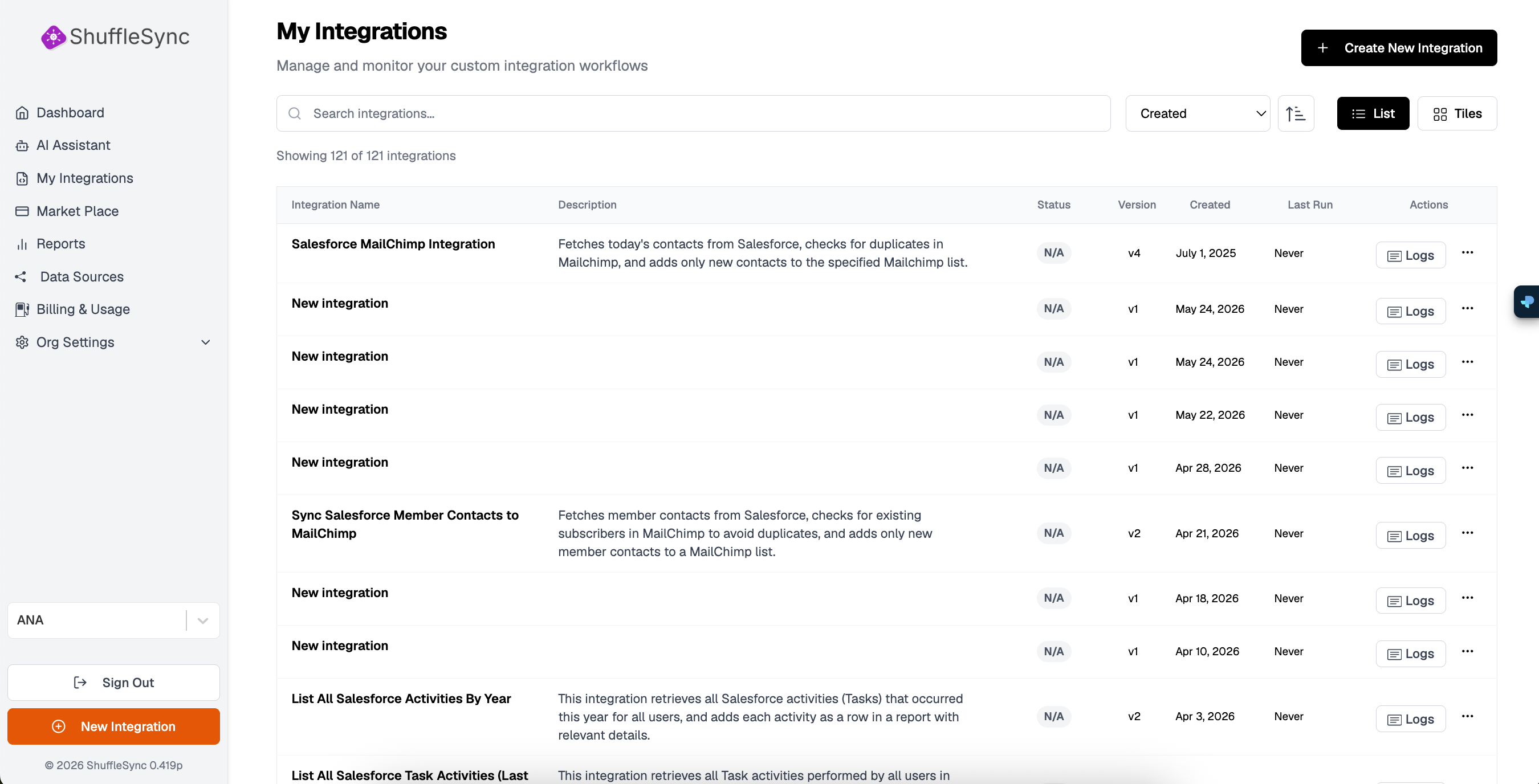
Integration List View
The integrations page displays all your workflows in a sortable, searchable list. Each integration shows the following information:
| Column | Description |
|---|---|
| Integration Name | The name you assigned to your workflow |
| Description | A summary of what the integration does |
| Status | Current status (Active, Inactive, N/A) |
| Version | The current version number (v1, v2, etc.) |
| Created | Date when the integration was first created |
| Last Run | When the integration was last executed |
| Actions | Quick access to logs and additional options |
Creating a New Integration
Click the + Create New Integration button in the top-right corner to start building a new workflow. This opens the Workflow Designer where you can:
- Use the AI Assistant to generate your workflow from a description
- Manually configure data sources, transformations, and targets
- Set up triggers (CRON, GET, or POST)
- Test your integration before deploying
Naming Best Practices
View Options
Toggle between List and Tiles view using the buttons in the top-right corner. The tile view provides a card-based layout that some users find easier to scan quickly.
Searching and Filtering
Use the search bar to find integrations by name or description. You can also sort the list by different columns:
- Created: Sort by creation date
- Name: Sort alphabetically
- Last Run: Sort by most recent execution
- Status: Group by active/inactive status
Viewing Logs
Click the Logs button next to any integration to view detailed execution history. The logs show:
- Execution timestamps
- Success or failure status
- Records processed
- Error messages (if any)
- Execution duration
Log Retention
Managing Integrations
Click the three-dot menu (or click on the integration name) to access additional options:
- Edit: Open the Workflow Designer to modify the integration
- Duplicate: Create a copy of the integration for modification
- Run Now: Manually trigger the integration
- Disable/Enable: Pause or resume scheduled executions
- Delete: Permanently remove the integration
Version History
ShuffleSync automatically versions your integrations each time you save changes. This allows you to:
- Roll back to previous versions if issues arise
- Compare changes between versions
- Track the evolution of your workflow over time