Data Sources
Connect and manage your data sources for organizational intelligence. Data Sources are the platforms you connect to ShuffleSync to read from and write to in your integrations.
New to Data Sources? Watch a video to see how to connect your platforms.
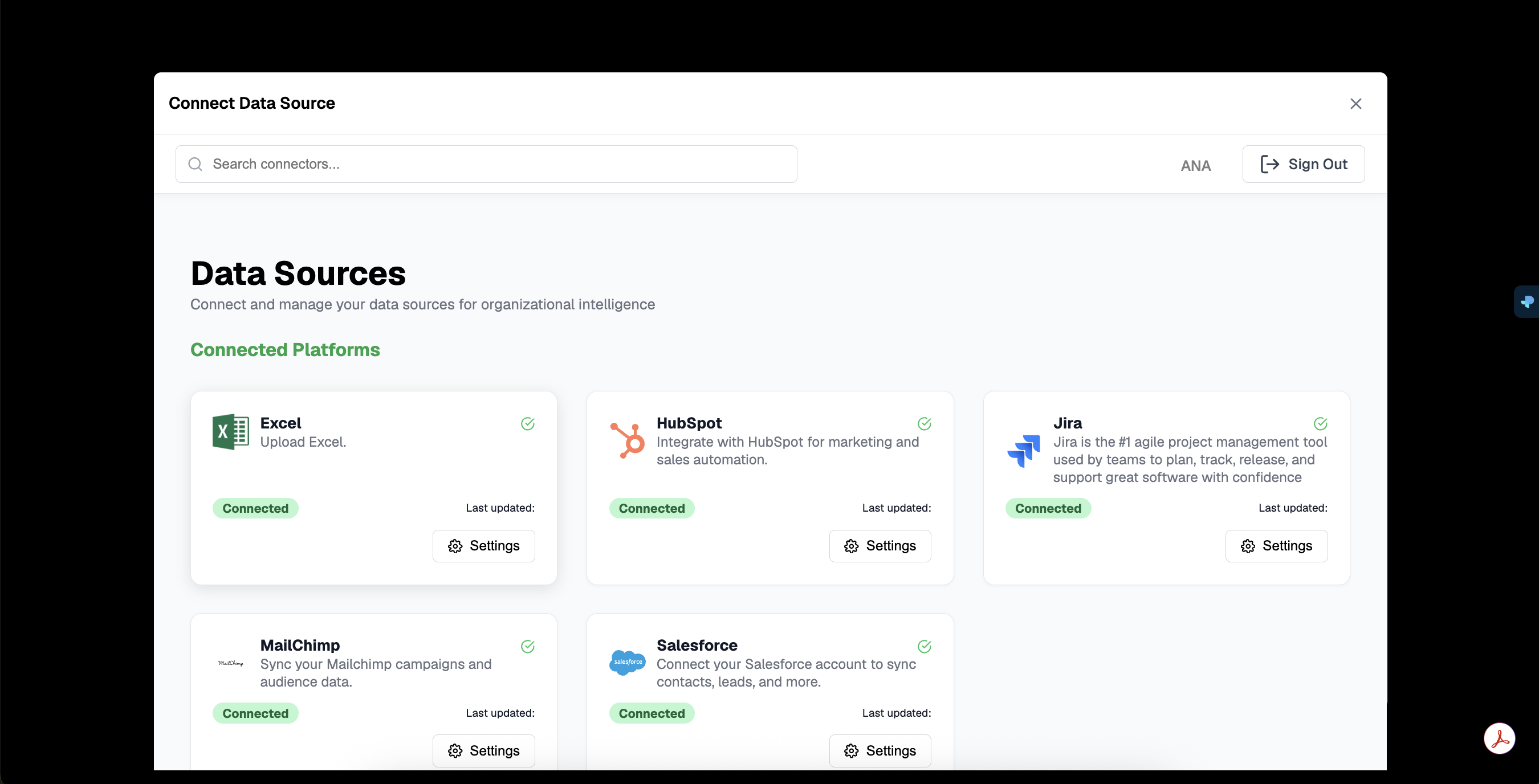
Supported Platforms
ShuffleSync supports a wide range of popular business platforms:
CRM & Sales
- Salesforce: Connect your Salesforce account to sync contacts, leads, accounts, and more
- HubSpot: Integrate with HubSpot for marketing and sales automation
- Pipedrive: Sync deals and contacts with Pipedrive
Marketing
- MailChimp: Sync your MailChimp campaigns and audience data
- Klaviyo: E-commerce marketing automation
- Constant Contact: Email marketing platform
E-commerce
- Shopify: Connect your Shopify store for orders, customers, and products
- WooCommerce: WordPress e-commerce integration
Project Management
- Jira: Agile project management tool by Atlassian
- Asana: Work management platform
- Monday.com: Team collaboration software
Learning Management
- Brightspace (D2L): Learning management system
- Wicket: Membership management platform
Productivity
- Excel: Upload and process Excel spreadsheets
- Google Sheets: Real-time spreadsheet integration
- Slack: Send notifications to Slack channels
Connecting a Data Source
Open Data Sources
Navigate to Data Sources from the sidebar menu. You will see a list of your currently connected platforms.
Search for Connector
Use the search bar at the top to find the platform you want to connect. Type the platform name to filter the available connectors.
Authenticate
Click on the platform card to start the connection process. Most platforms use OAuth for secure authentication - you will be redirected to log in with your credentials.
Configure Permissions
Grant the necessary permissions for ShuffleSync to access your data. Review the requested scopes and approve the connection.
OAuth Security
Connected Platforms
Once connected, platforms appear with a green Connected badge. Each connected platform card shows:
- Platform Name: The service name and icon
- Description: What the connector does
- Status: Connection status (Connected/Disconnected)
- Last Updated: When the connection was last verified
- Settings: Button to manage connection settings
Managing Connections
Settings
Click the Settings button on any connected platform to:
- View connection details and permissions
- Re-authenticate if the connection expired
- Configure advanced options (API version, rate limits)
- Disconnect the platform
Re-authentication
Some platforms require periodic re-authentication. If you see a warning icon, click Settings and follow the prompts to refresh your connection.
Token Expiration
Excel File Uploads
The Excel connector works differently from OAuth-based platforms:
- Click on the Excel card to open the upload dialog
- Drag and drop your Excel file or click to browse
- The file is processed and made available for your integrations
- You can upload updated versions at any time
Using Data Sources in Integrations
After connecting a platform, it becomes available in the Workflow Designer:
- Select it as a source to fetch data from
- Select it as a target to write data to
- Use it in transformations for lookups and enrichment
The AI Assistant is also aware of your connected data sources and can suggest integrations based on what you have available.
Security Best Practices
- Least Privilege: Only grant the permissions your integrations need
- Regular Audit: Review connected platforms periodically
- Remove Unused: Disconnect platforms you no longer use
- Monitor Access: Check the Audit Log for connection activity